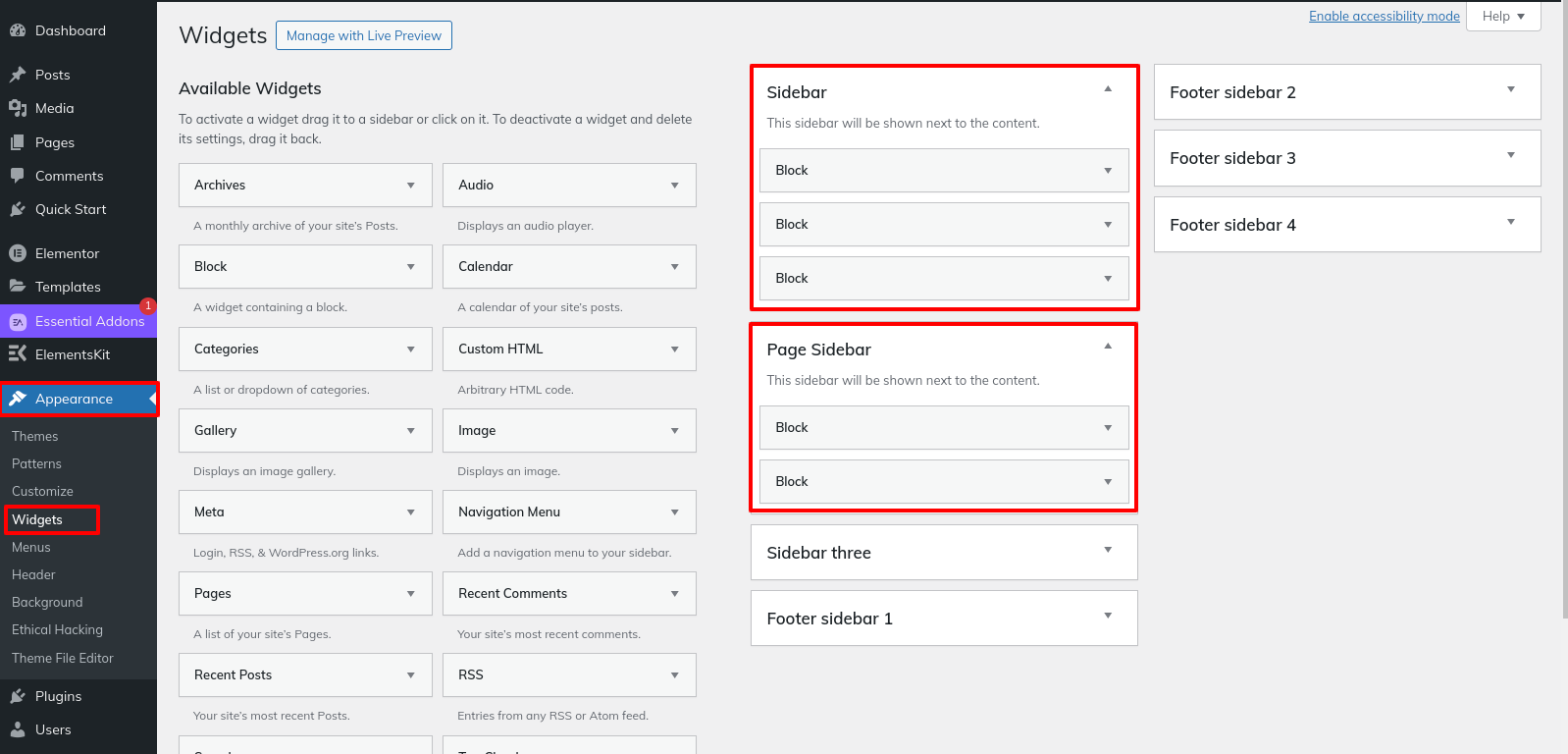
Theme Installation
Use WordPress admin to install a theme.
To begin, please log in to your admin area on WordPress.
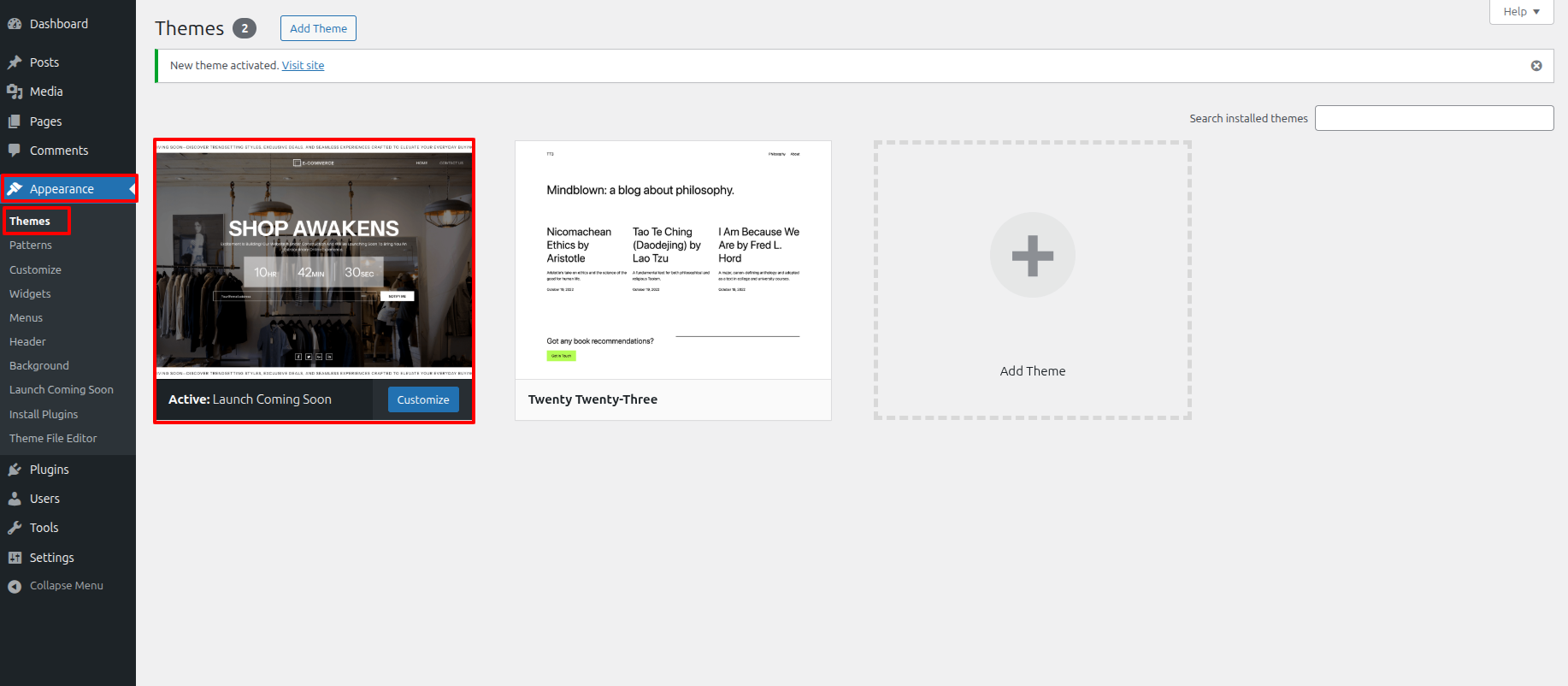
1.Click on Appearance Themes
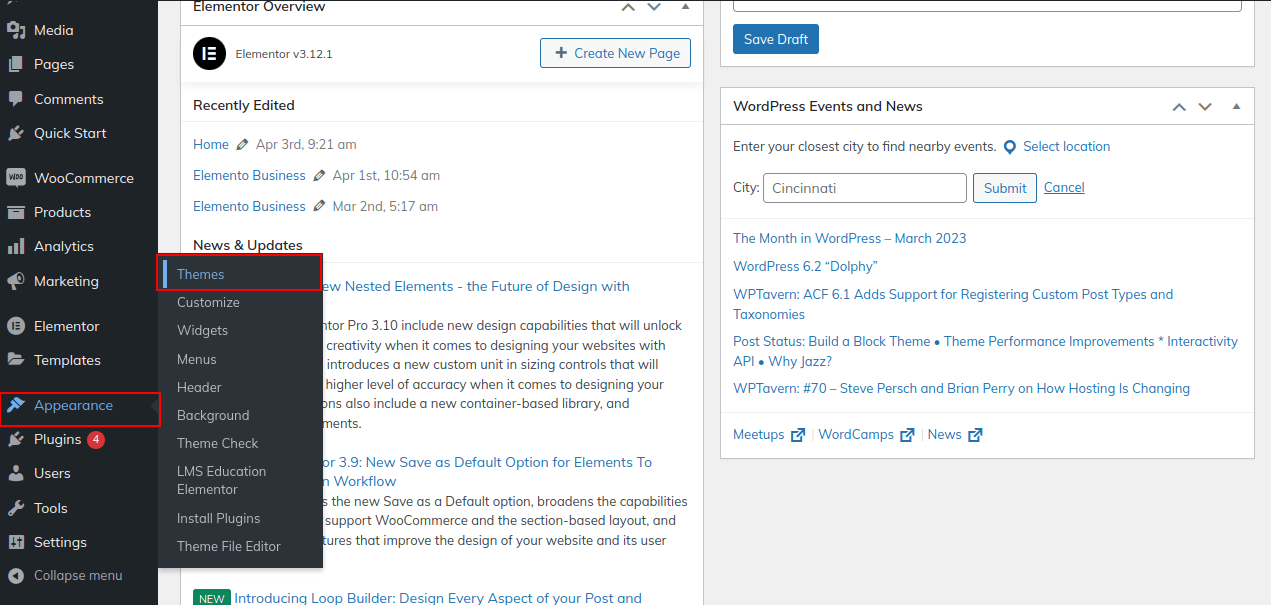
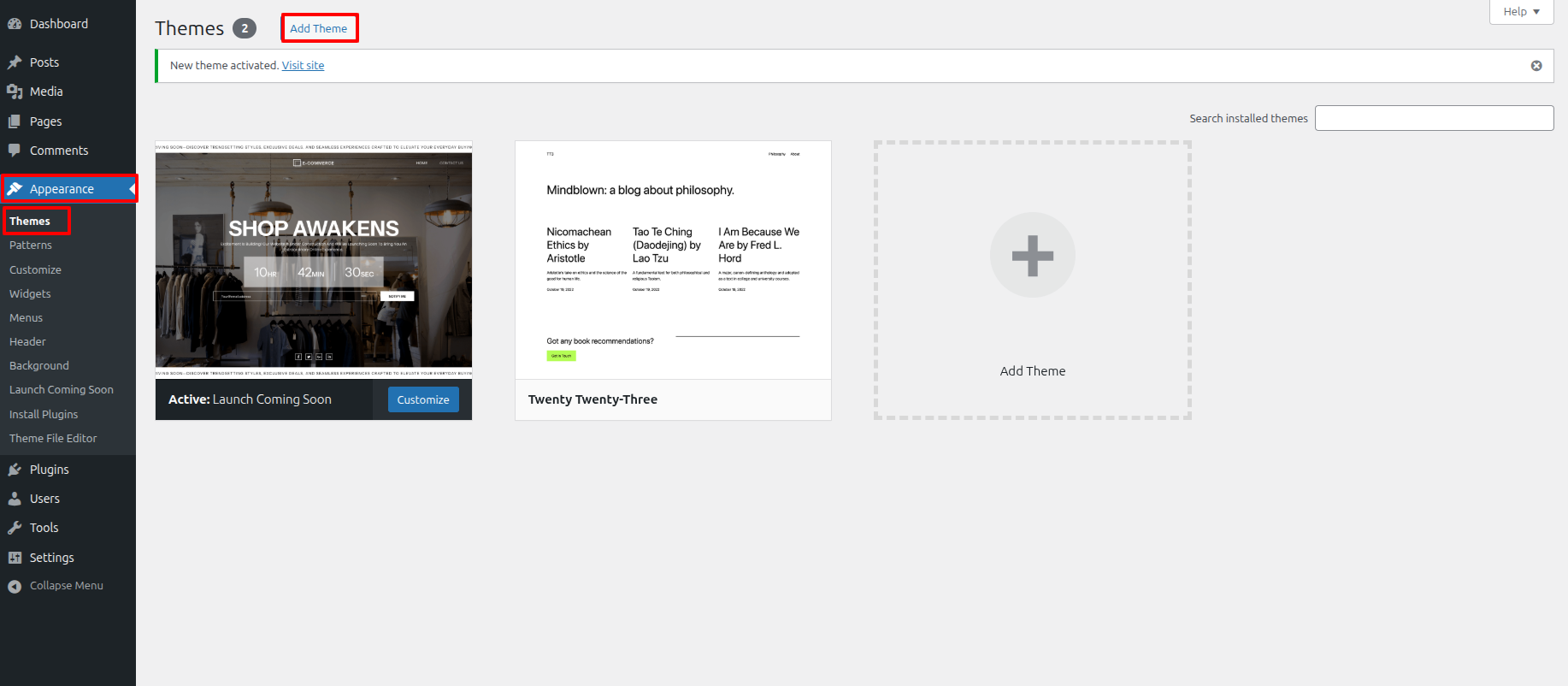
2. On the themes page, click the button for adding new.
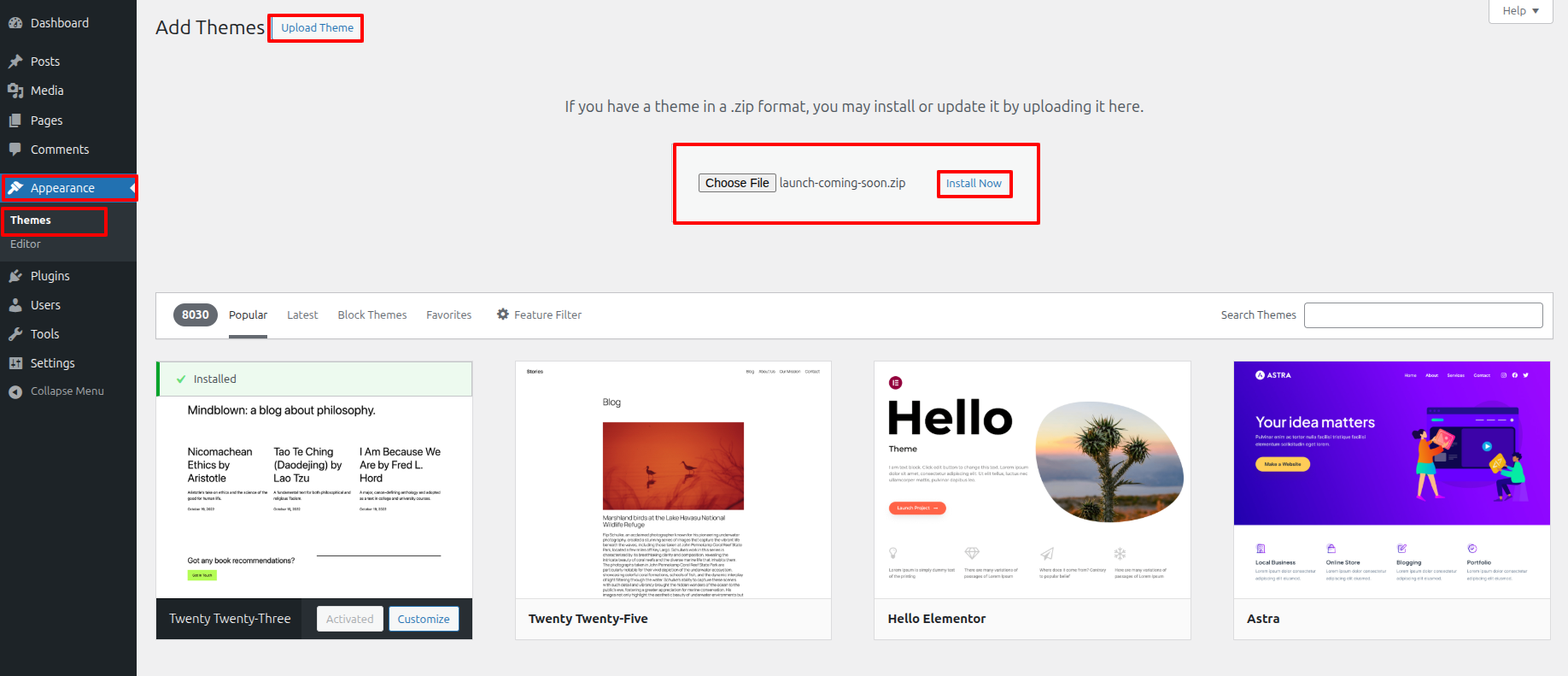
3. After clicking Browse, select your launch-coming-soon.zip file and click Install now.
4. Get your theme installed and activated.
Plugin Installation.
To install the required plugins, follow these steps:
1. Click Dashboard Appearance Install Plugin
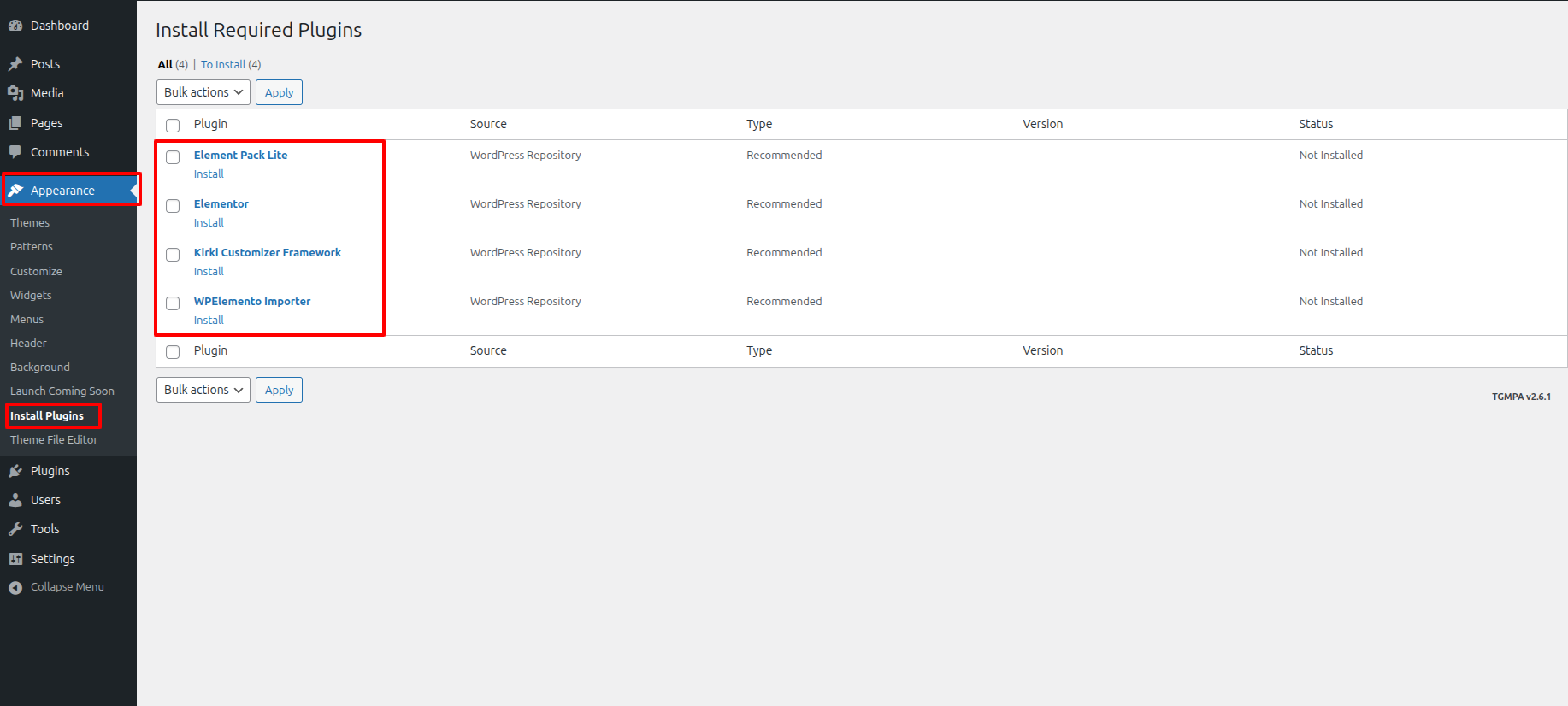
Simply click the install now button and activate the plugin.
Theme Setup
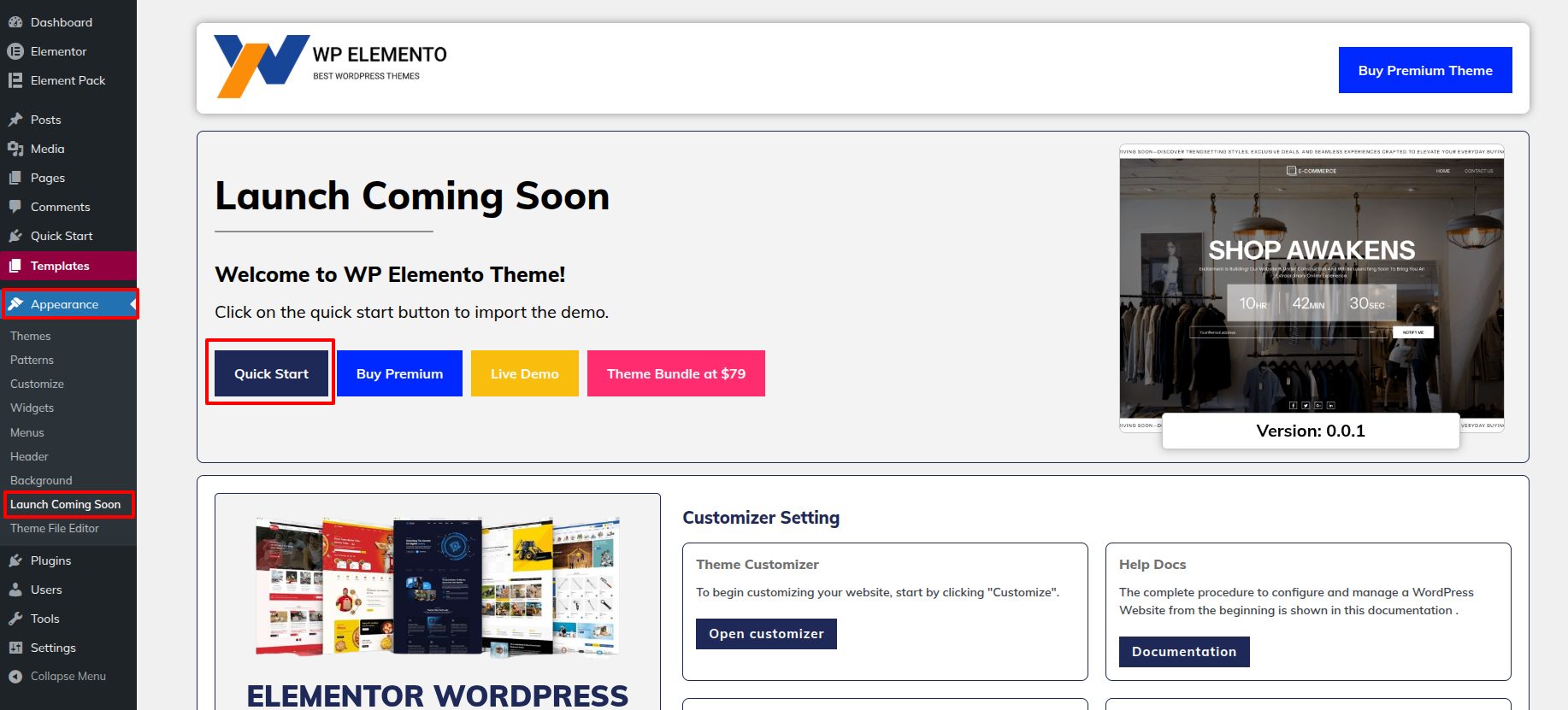
To import content, follow these steps.
1. Click Dashboard Appearance Launch Coming Soon
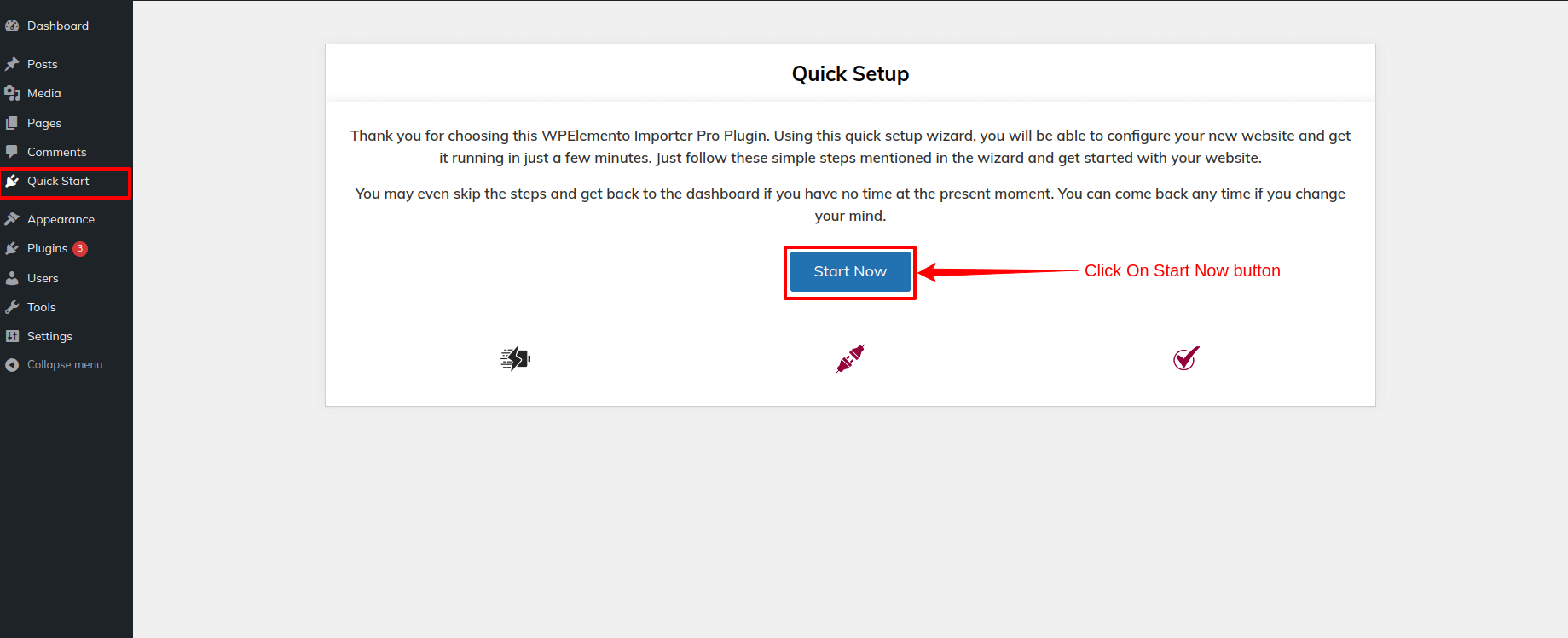
2. Then Click On Start Now button
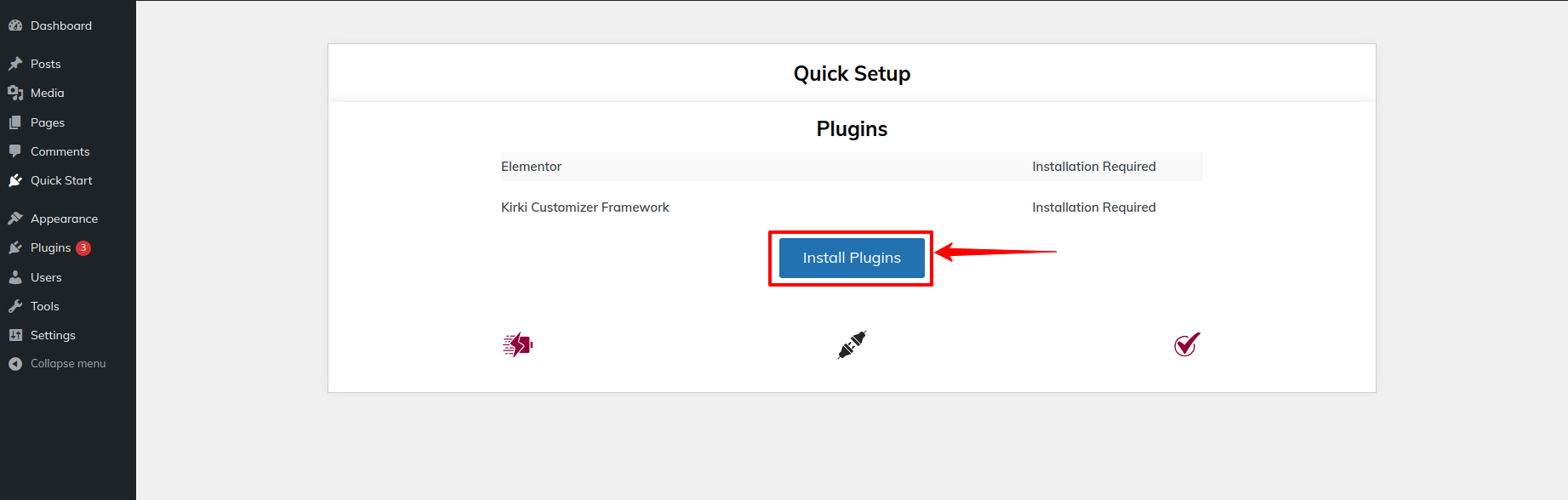
3. Click on Install Plugins or Skip To Next Step.
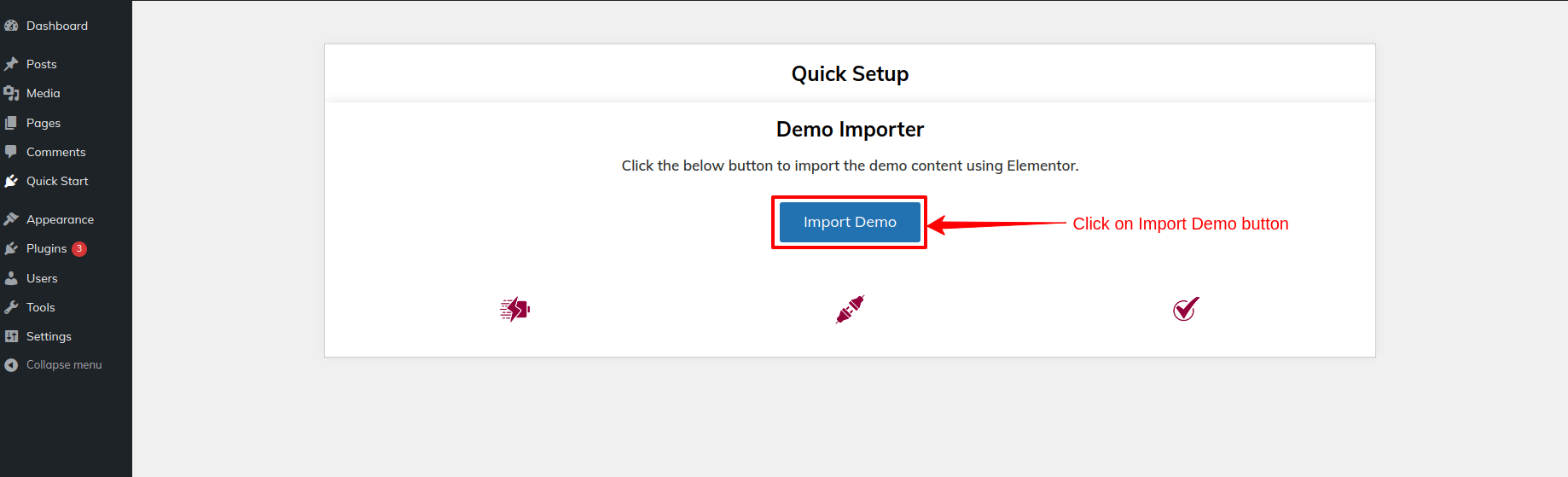
4. Then click on Import Demo button to start importing the demo.
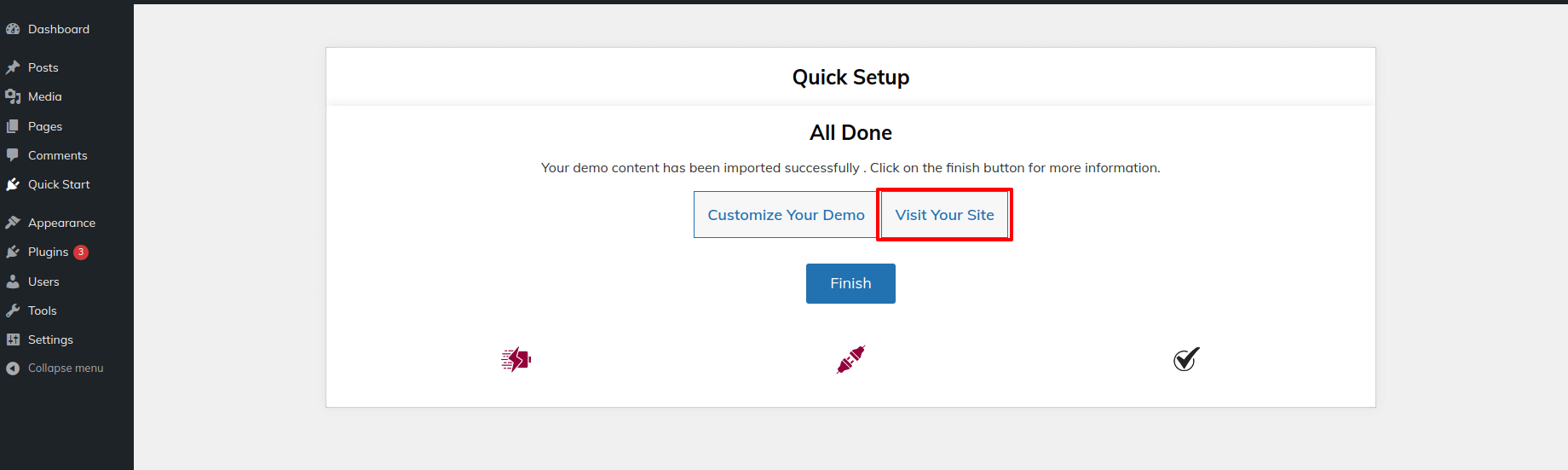
5. Then Click on Visit Your Site button for visiting site.
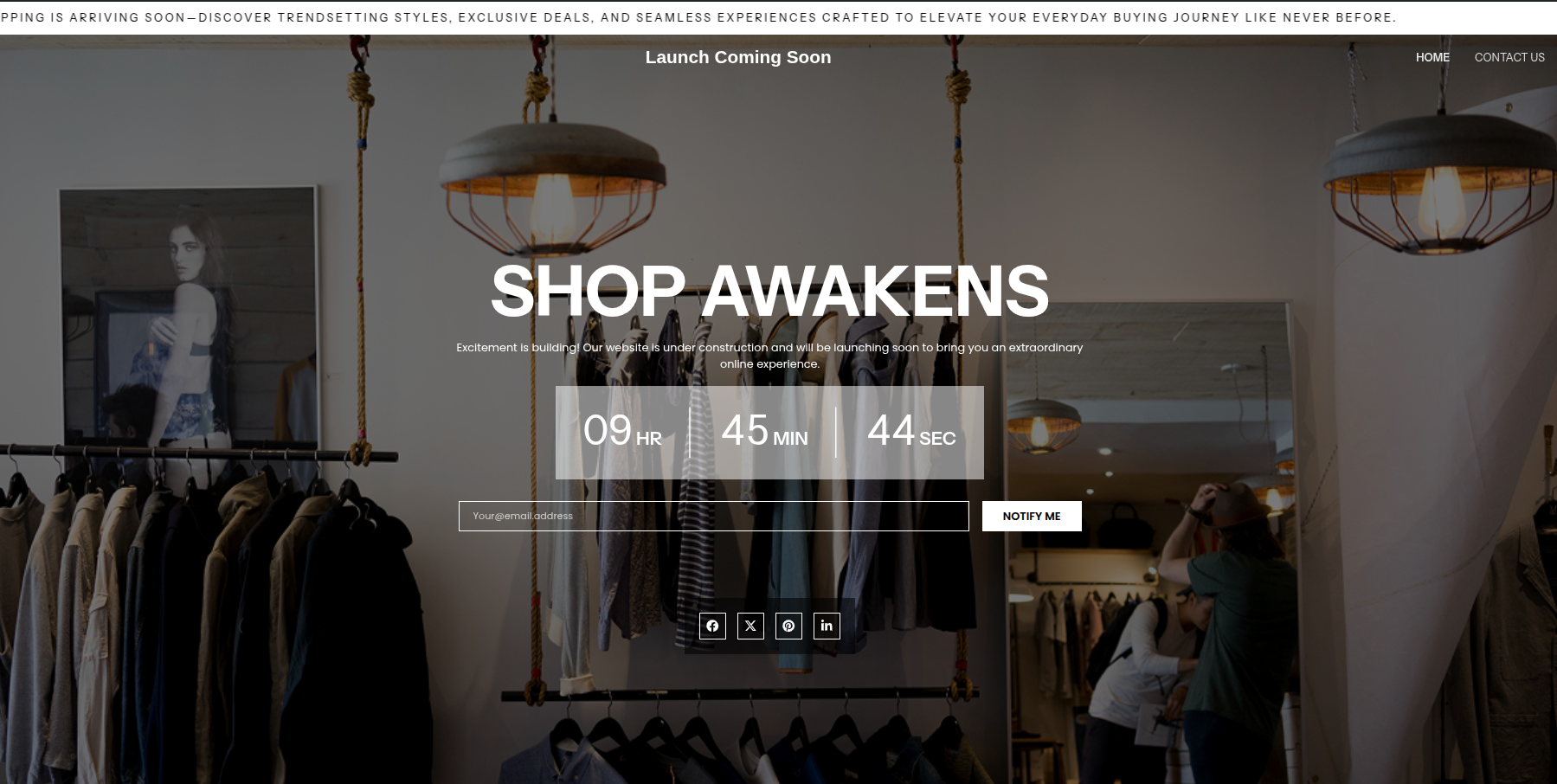
6. Now you can visit your site.
Navigation Menus Settings
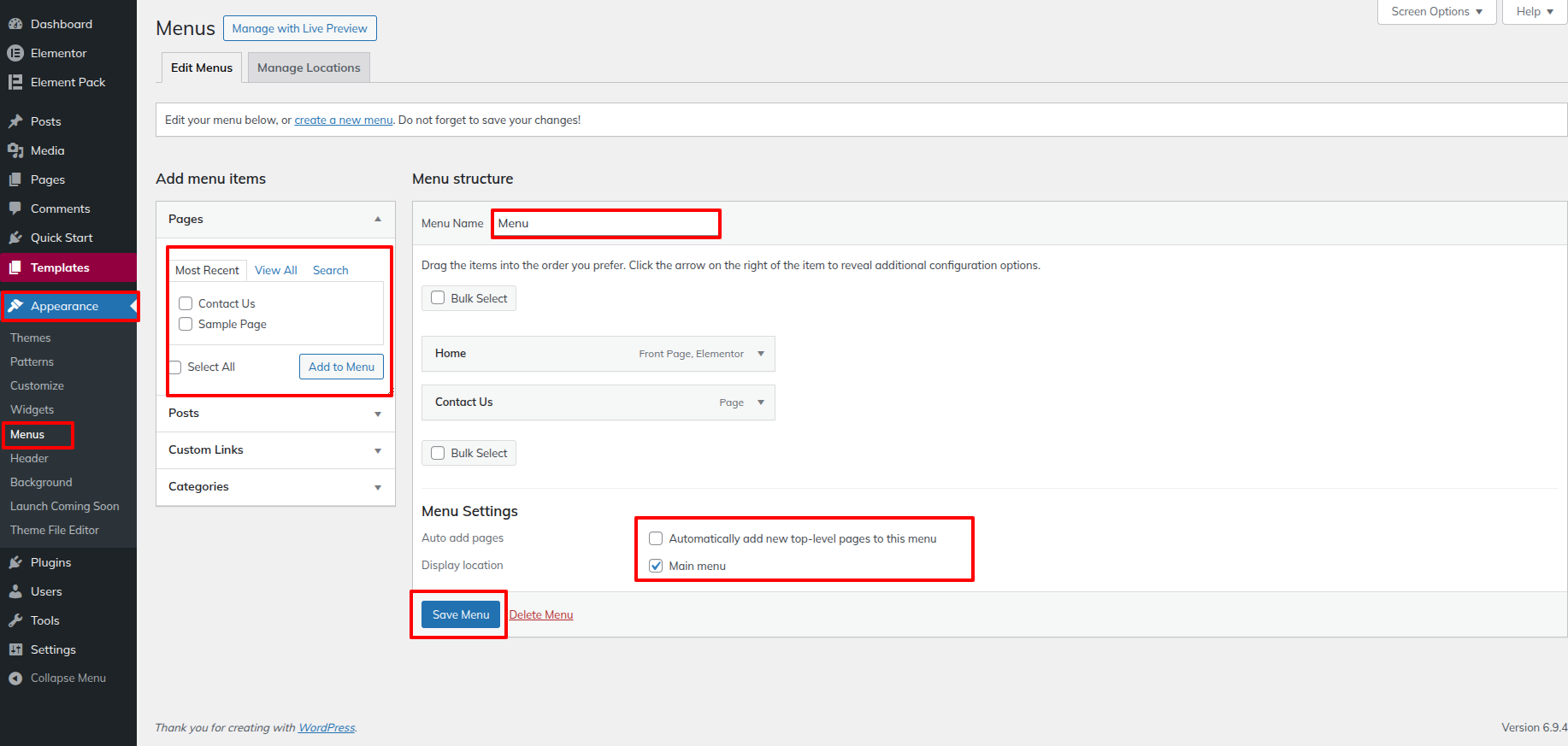
Proceed to Appearance Menus
1.Pages should be added by selecting the appropriate checkboxes. After adding them, you can rearrange the menu list by dragging and dropping items into place.
2.Select the menu theme location from the checkboxes below..
Logo Settings
Site Identity Section
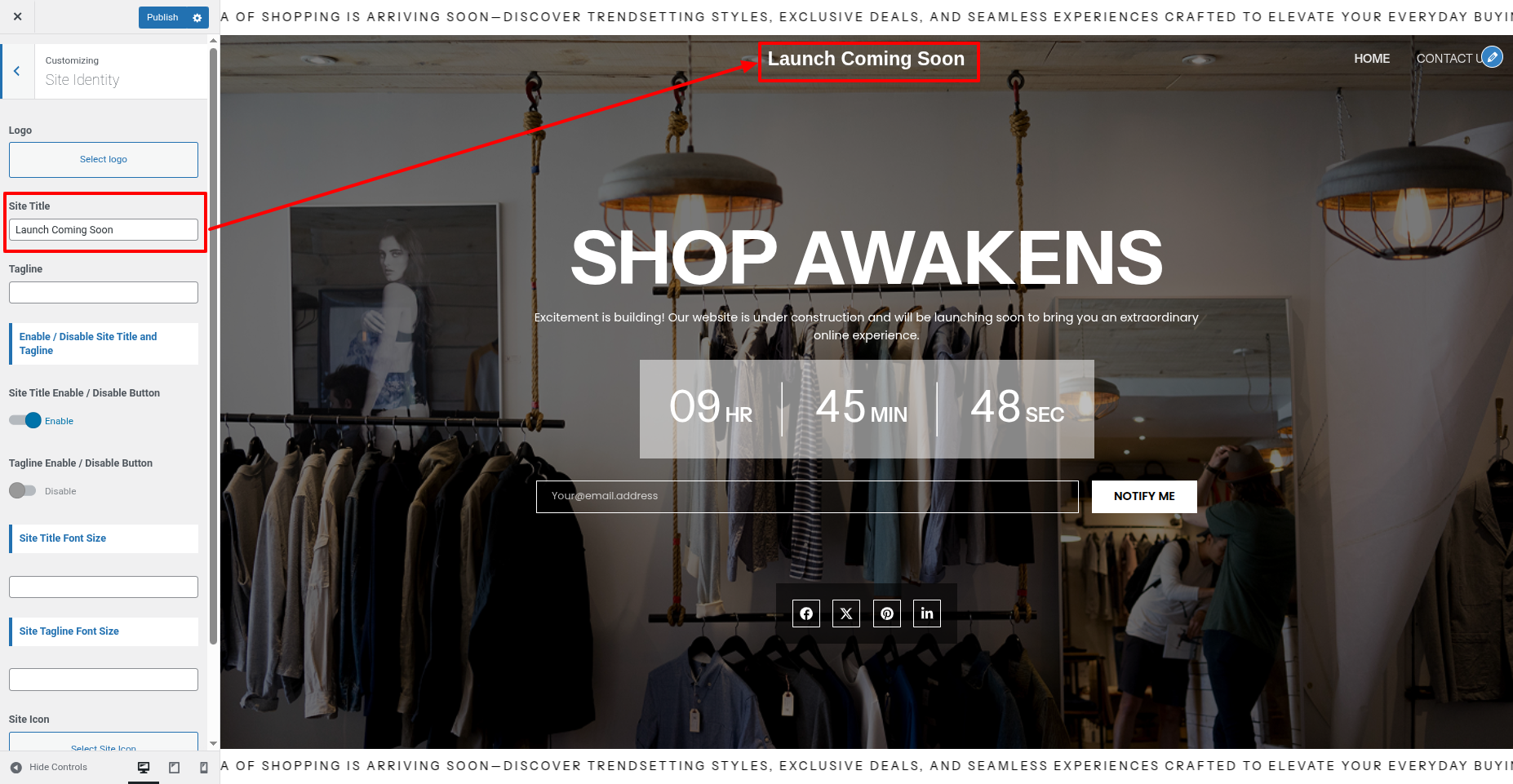
Proceed to Appearance Customize Site Identity
here you add site title and tagline and also add enable/disable site title and tagline button.
Edit Home Page
Edit Home Page With Elementor
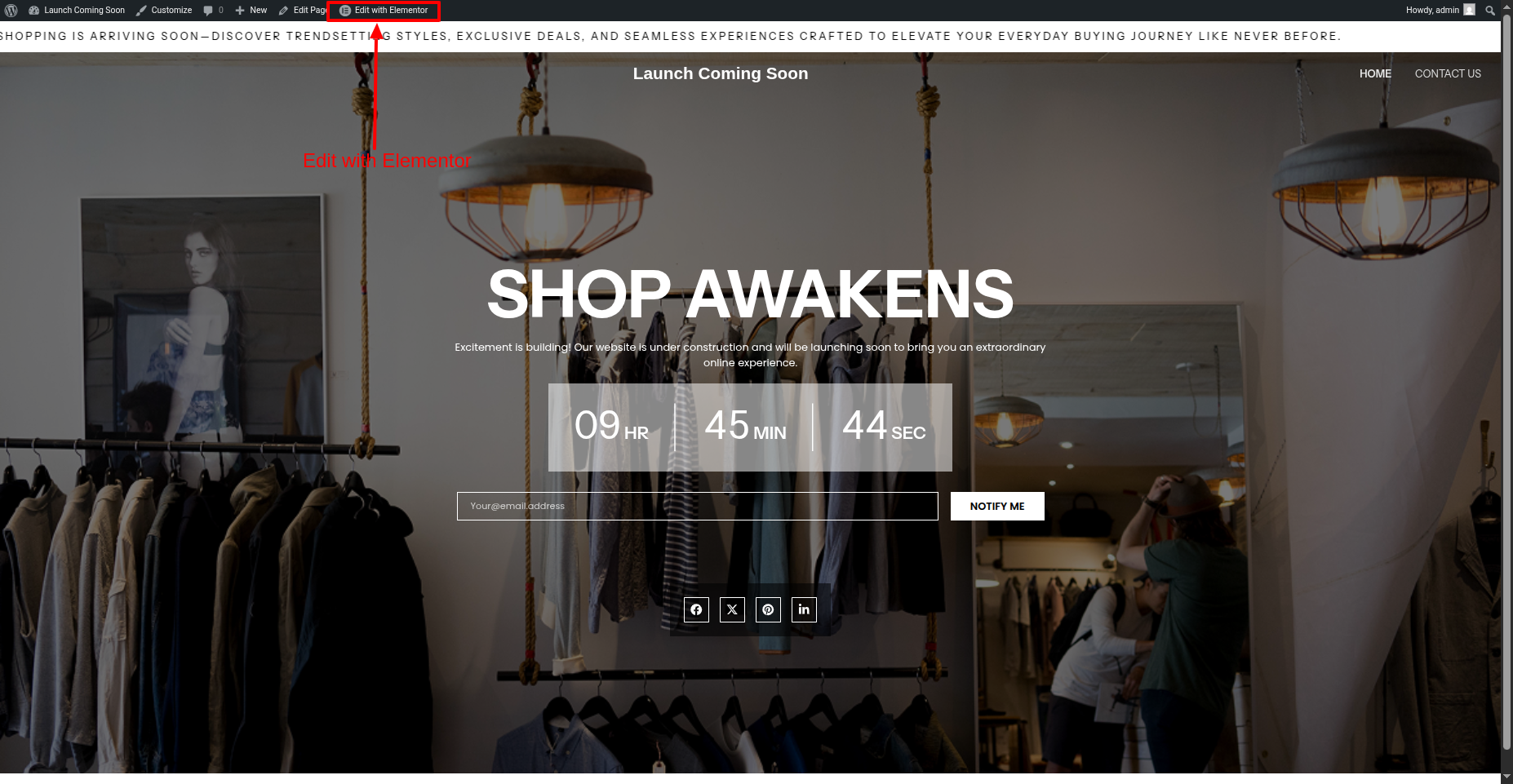
1) Proceed to Home
2) Click Edit With Elementor Option
i) Edit Banner Section
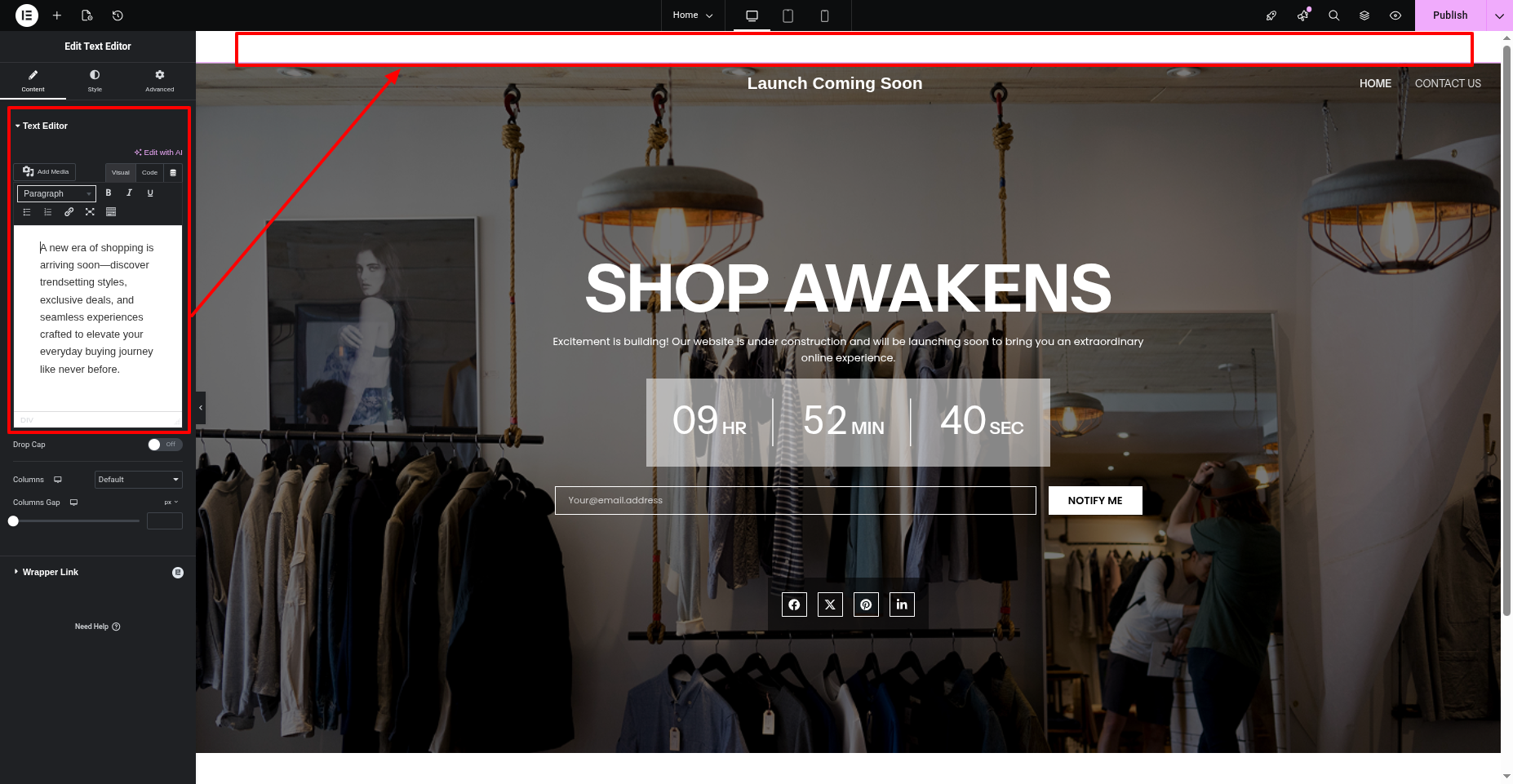
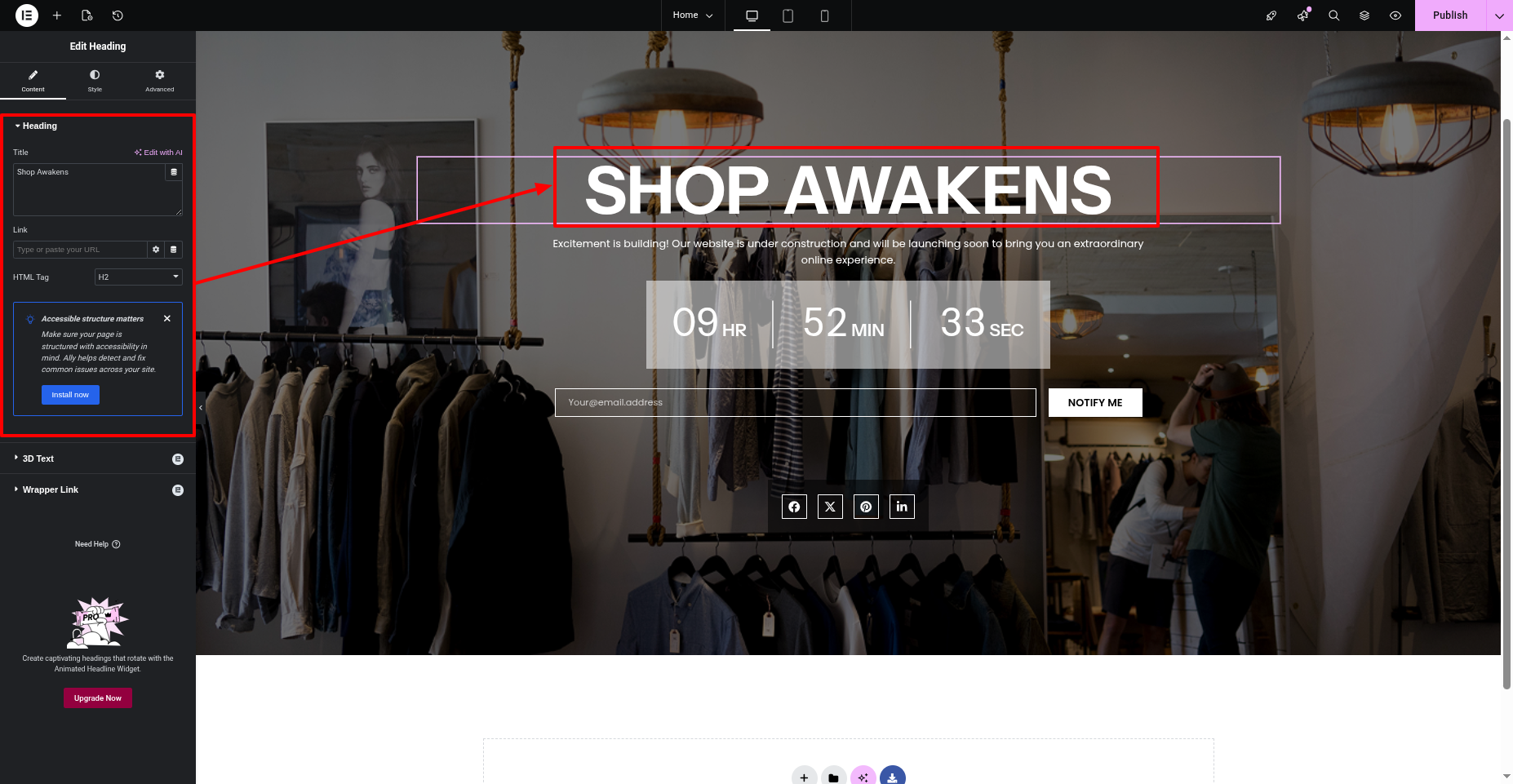
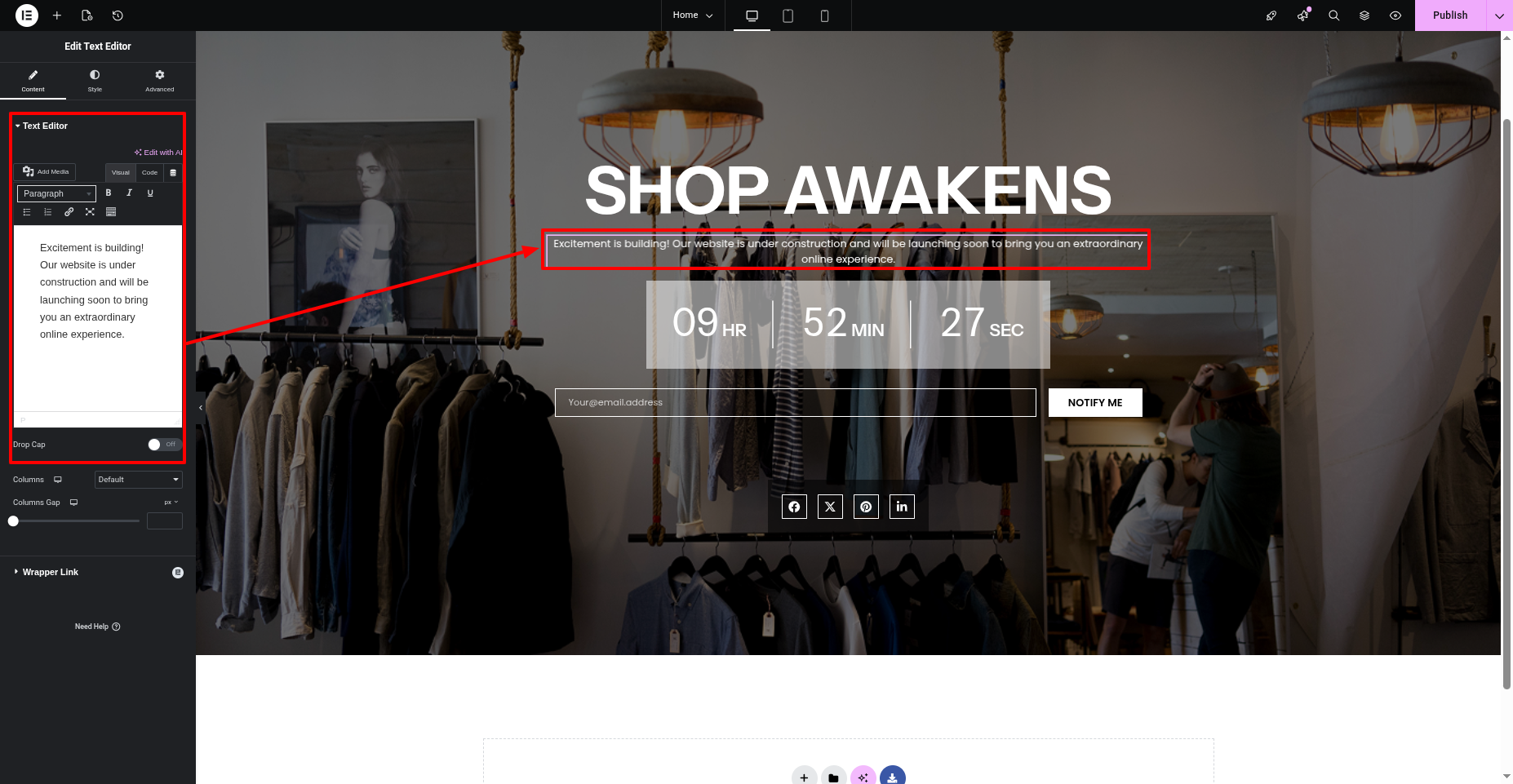
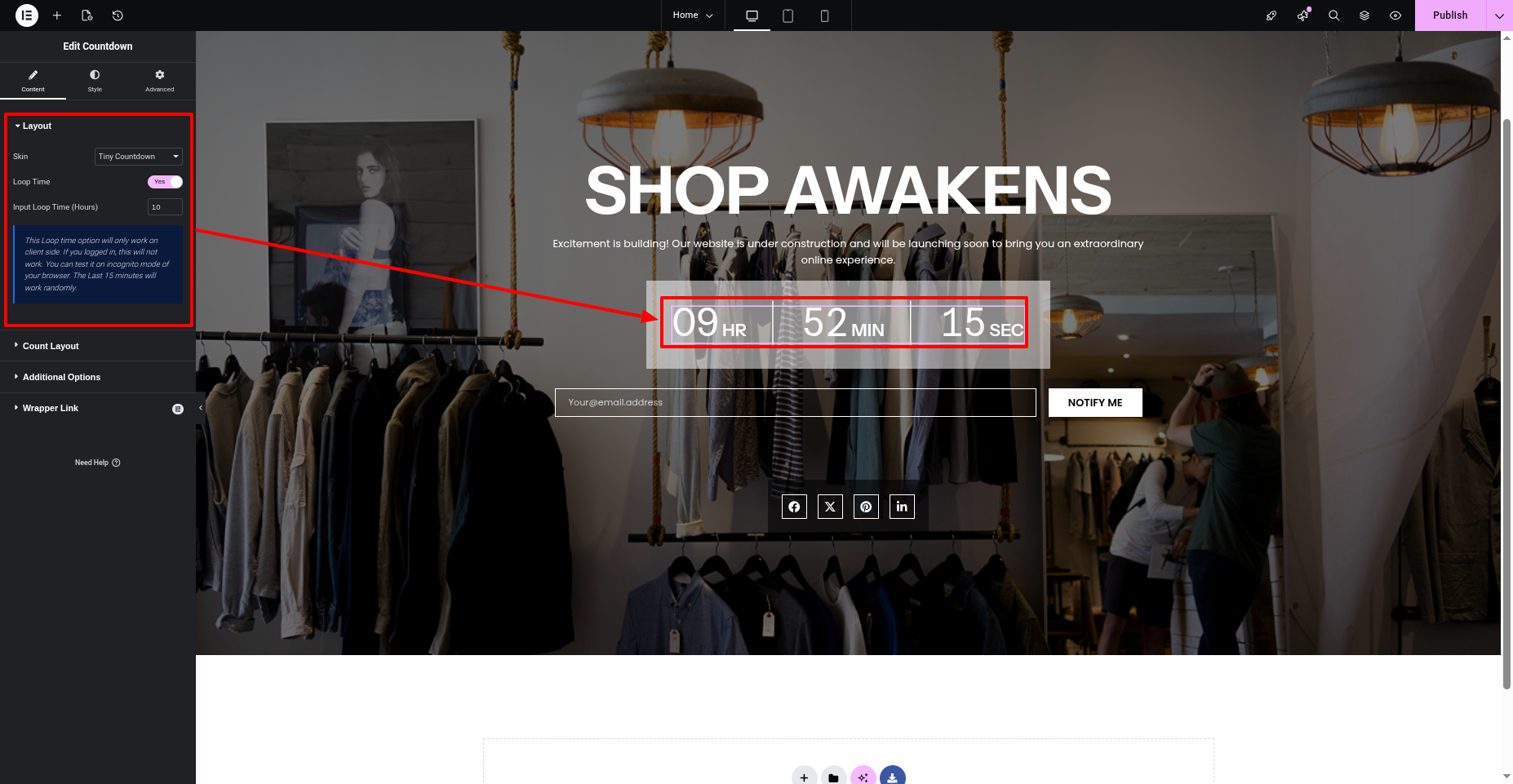
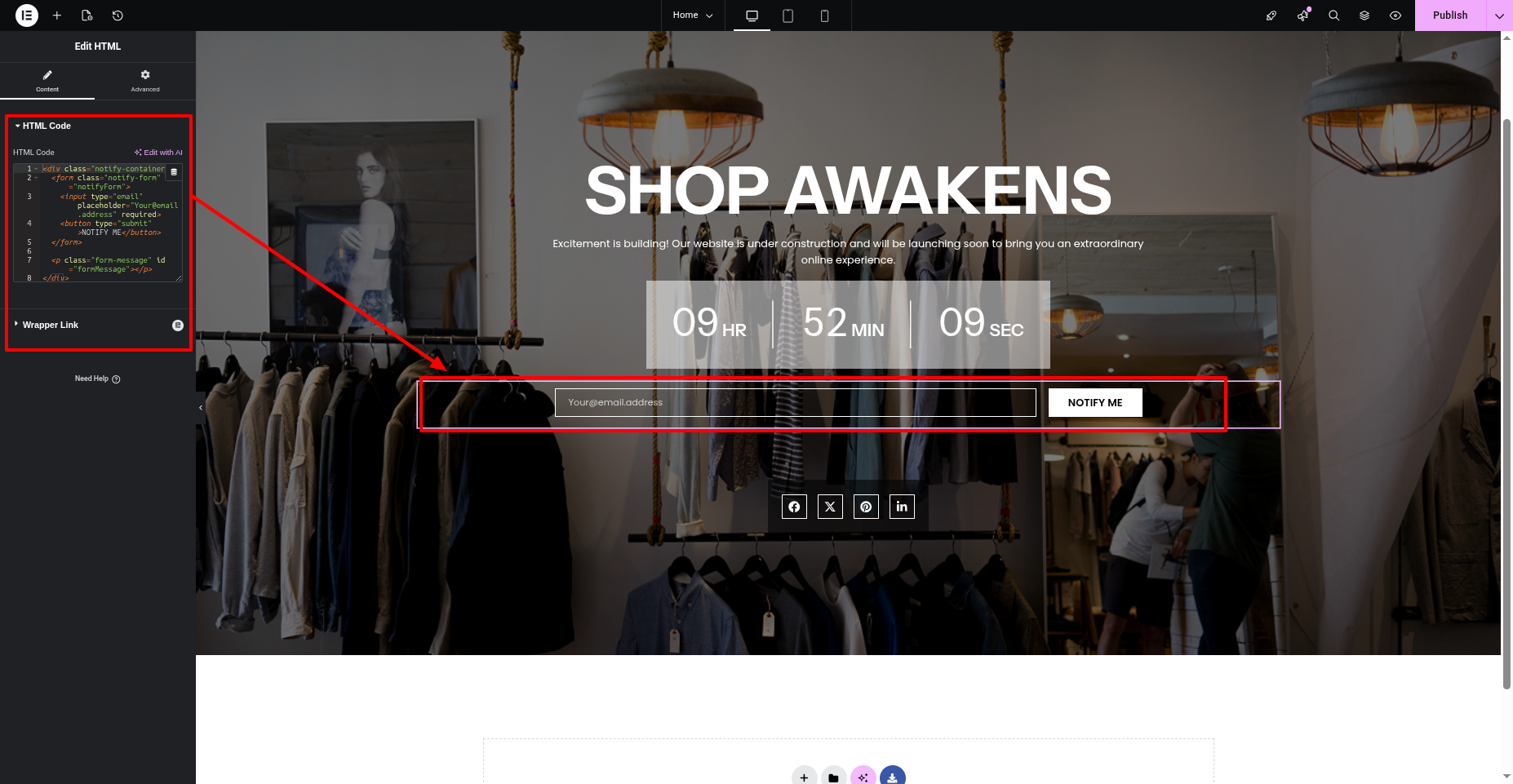
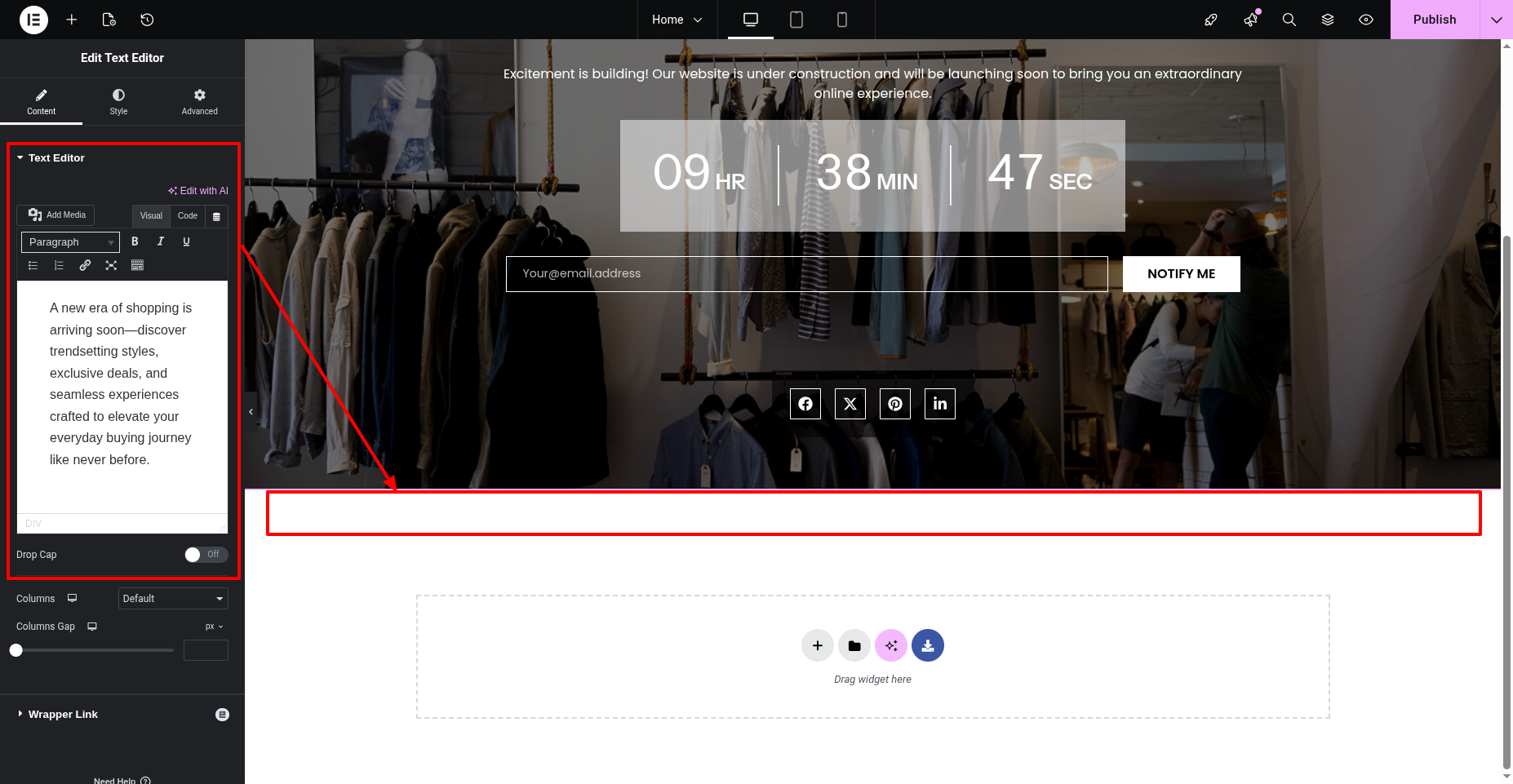
In this way you can edit Homepage.
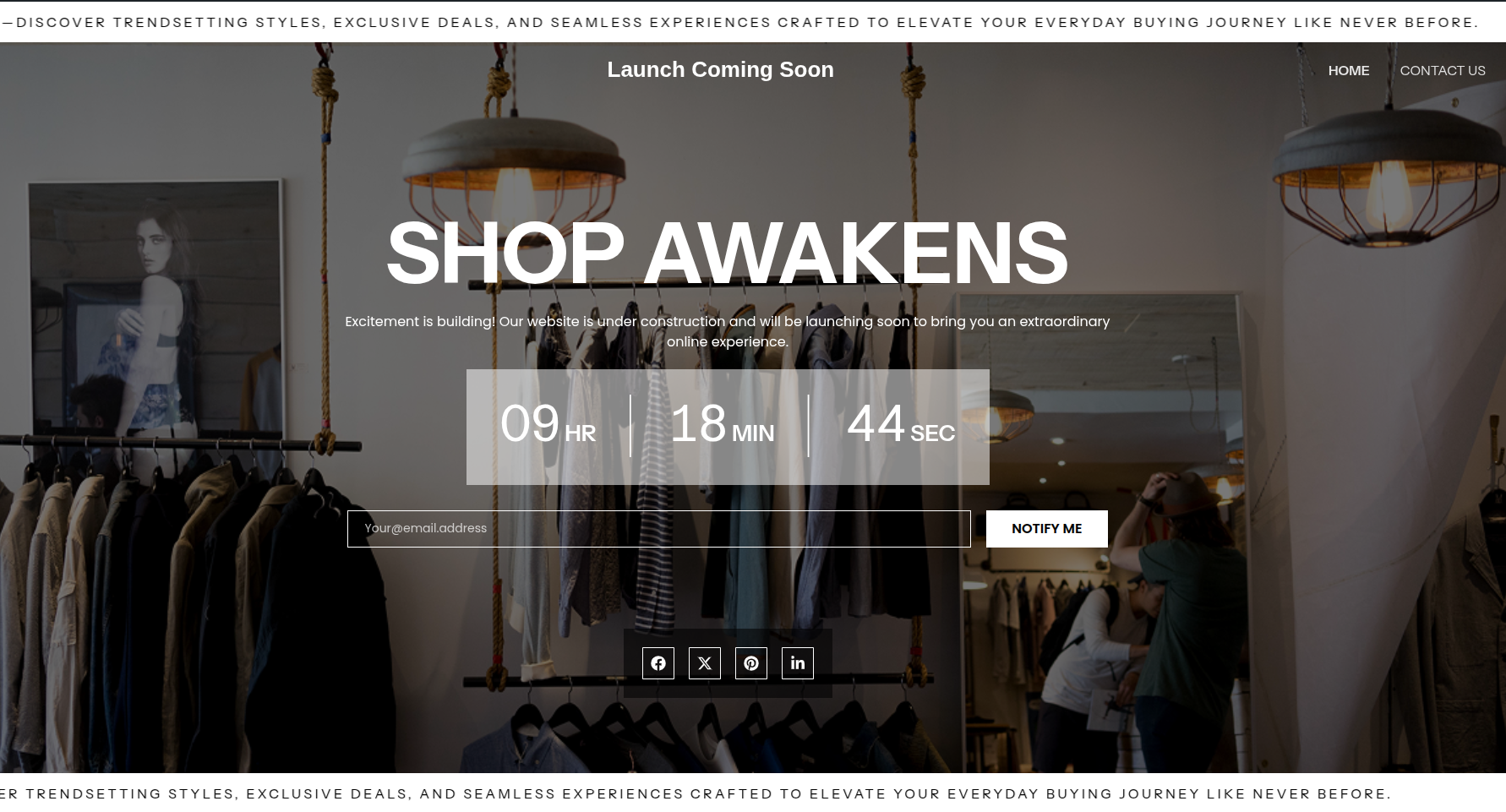
Post Section
To set up Post Settings follow these instructions.
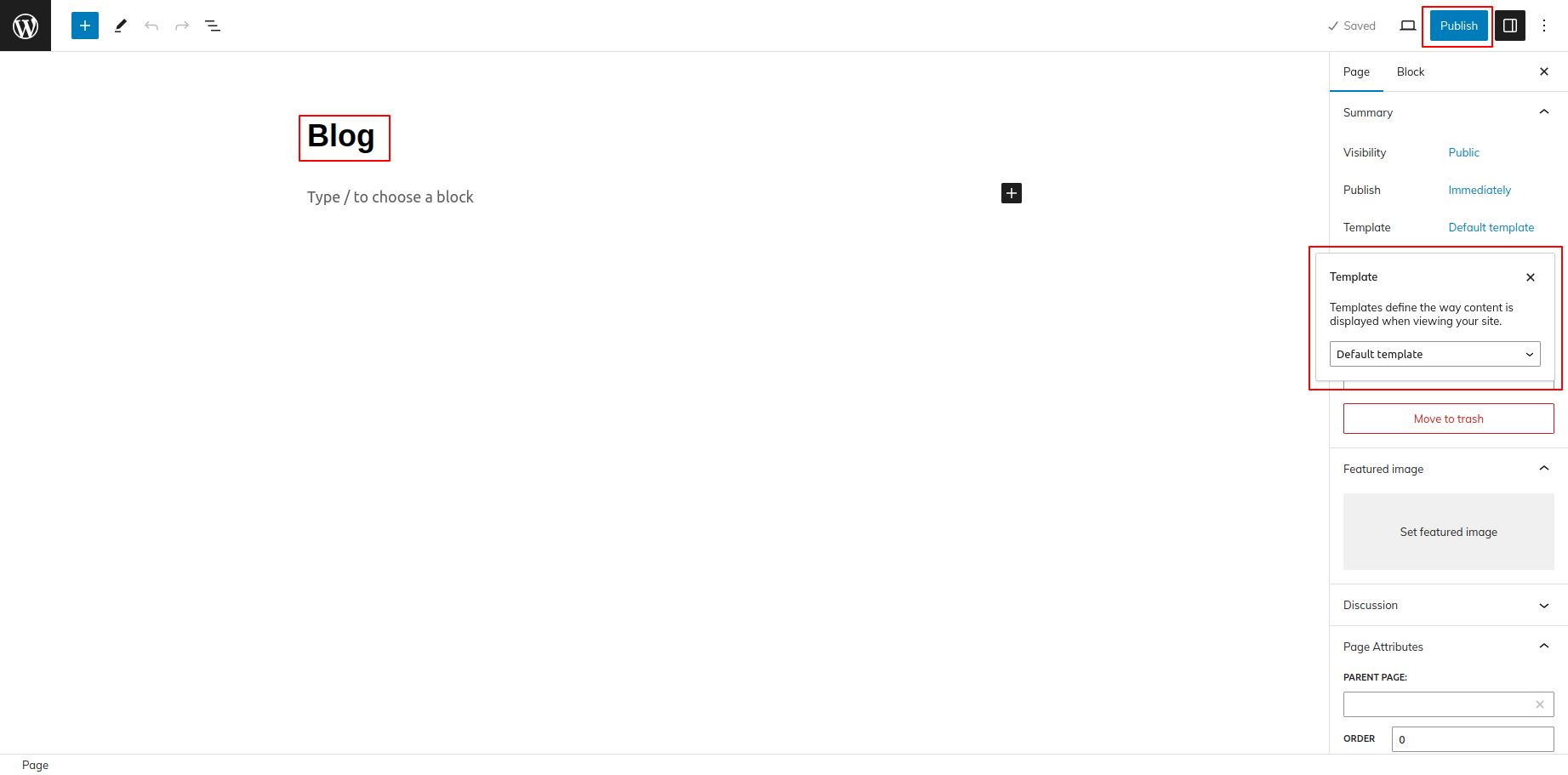
1) Create Blog Page
i) Proceed to Dashboard Pages Add New
ii) Enter a title for your page, such as “Blog”.
iii) In the Page Attributes section on the right side of the page editor, you may find a “Template” dropdown menu. Select the appropriate template for your blog page.
iv) Click on the “Publish” button to save the changes .
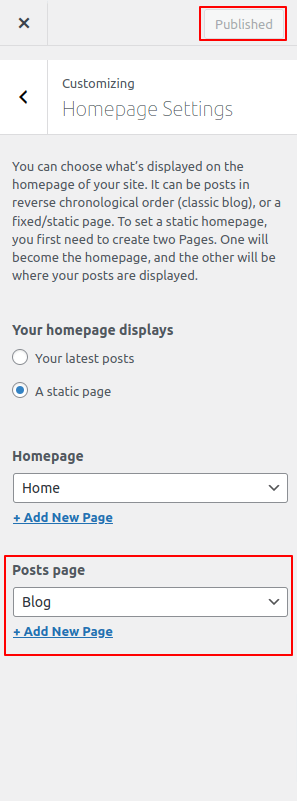
2) Select Blog page as Posts page
Proceed to Dashboard Customizer Homepage Settings
3) Create Posts
Proceed to Dashboard Post Add New
i) Enter Post Content.
ii) Set featured image.
iii) Save the Post.
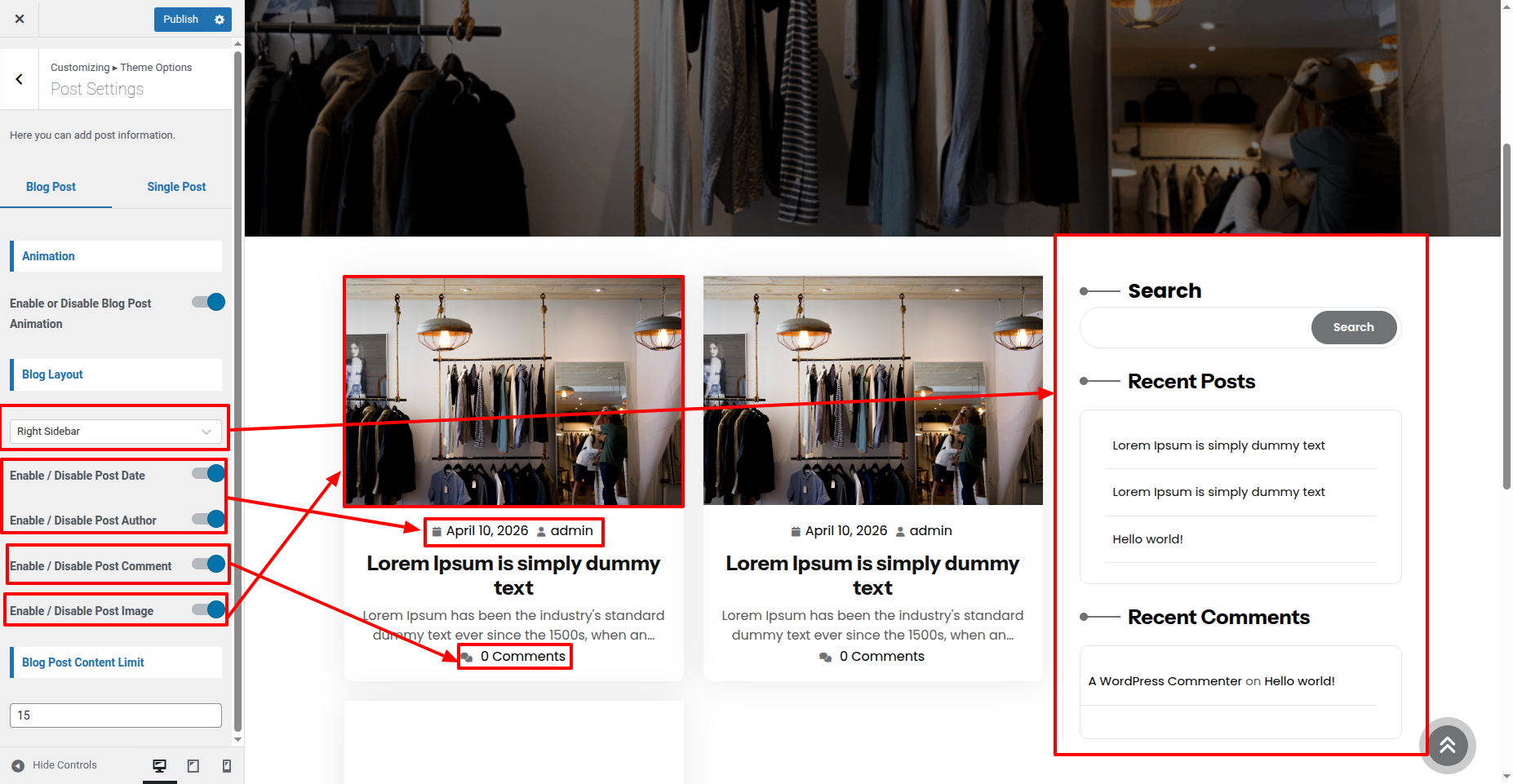
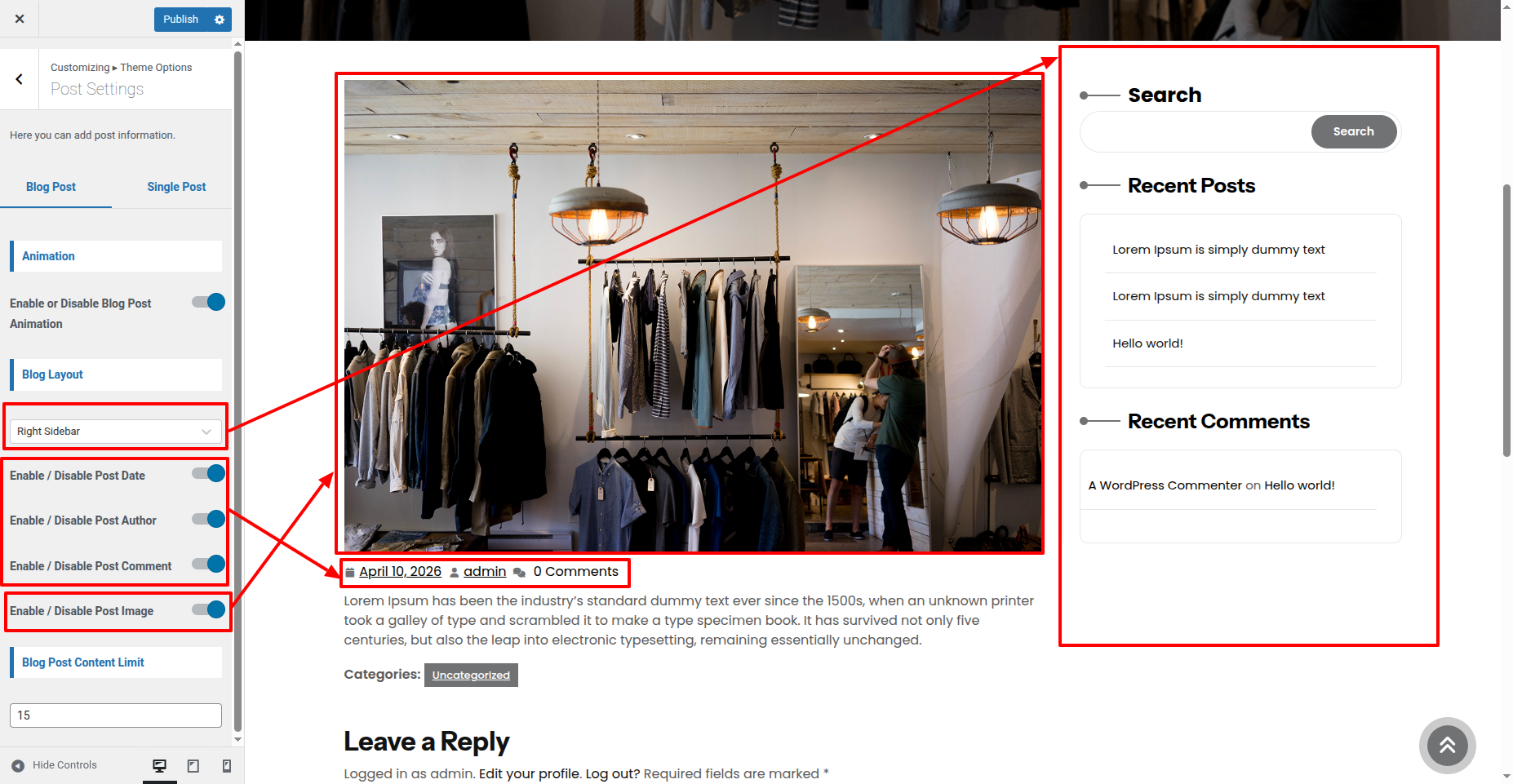
4) Post Settings
Proceed to Dashboard Customizer Theme Options Post Settings
i) Enable / Disable Post Date.
ii) Enable / Disable Post Author.
iii) Enable / Disable Post Comment.
iv) Enable / Disable Single Post Tag
v) Enable / Disable Single Post Category
Sidebar Settings
1) Install and then activate Classic Widgets plugin.
2) Proceed to -Dashboard- -Appearance- -Widgets- Sidebar
3) Drag and Drop anythings you want.